Starting a timer
Timers live right inside Cooking Mode, so they’re always within reach:1
Look for highlighted time mentions
As you follow along in Cooking Mode, look for highlighted time mentions in the step text — these appear underlined with a timer icon.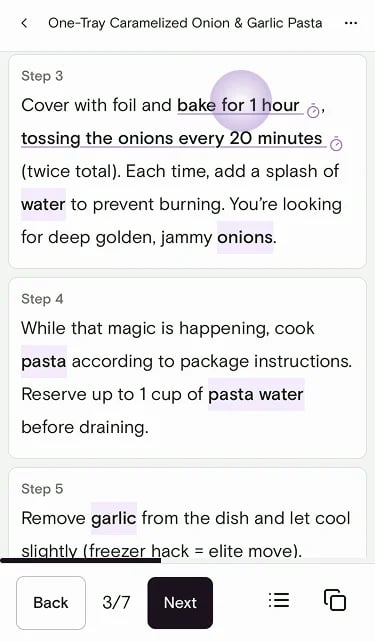
2
Tap the highlighted time
Tap the highlighted time to open the timer controls. Confirm the duration, then tap play to start the countdown.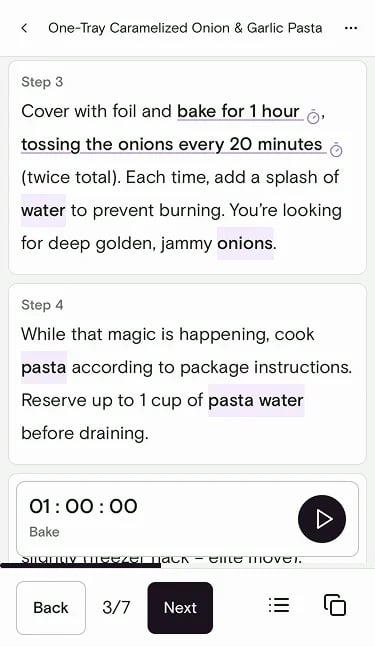
3
Keep cooking
The timer runs directly in the app — you never have to leave your recipe to manage it.
Add a timer manually
You can also create a timer when a recipe doesn’t include a time mention, or when you want a custom countdown:1
Tap the timer button
In Cooking Mode, tap the timer button (clock with a plus) at the top of the screen.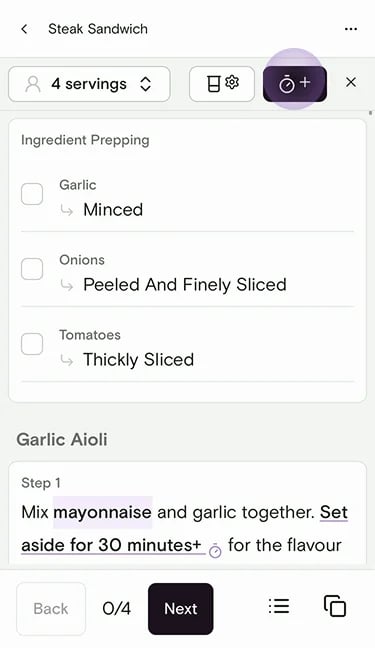
2
Set the duration and start
Enter the time with the keypad (or tap + 30 to add 30 seconds), optionally name the timer, then tap Start.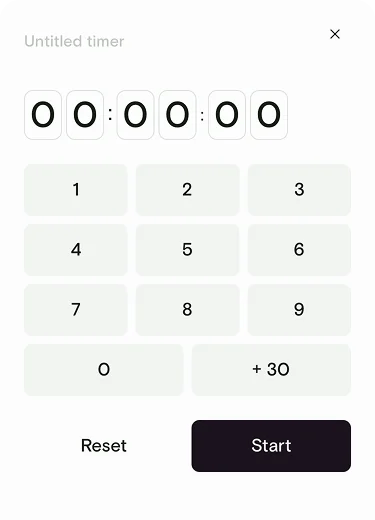
Managing multiple timers
Many recipes have overlapping steps, and Souschef handles that gracefully:- You can run several timers at the same time — one for the pasta water, one for the sauce, one for the bread in the oven.
- All active timers stay visible without leaving Cooking Mode, so you can keep an eye on everything at a glance.
- If you open a second recipe window, your timers continue running in the background.
Still need help?
If you have questions or run into anything unexpected, our team is happy to help. Contact supportRelated articles