What Souschef tags
Suggested tags cover the ways you actually think about recipes:- Cuisine — Italian, Japanese, Mexican, Thai, and so on
- Meal type — breakfast, lunch, dinner, snack, dessert
- Diet — vegetarian, vegan, gluten-free, high-protein, and more
- Main ingredient — chicken, pasta, tofu, salmon, and so on
- Cooking method — baked, grilled, air fryer, one-pot, slow cooker, no-cook
- More — quick, kid-friendly, meal prep, holiday, and other contextual tags
Tags during import
When you import a recipe from any source — Instagram, TikTok, YouTube, Pinterest, Facebook, a website, photos, ChatGPT or Claude, or plain text — the import preview shows Souschef’s suggested tags with the most relevant ones already selected. You can:- Accept the suggestions as-is with a single tap on Save.
- Untick tags that don’t feel right.
- Tap to add additional tags Souschef didn’t suggest.
Editing tags on a saved recipe
Already saved a recipe? You can still edit its tags anytime.1
Open the recipe and tap the tags
Open the recipe from your library and tap the tag row under the recipe details.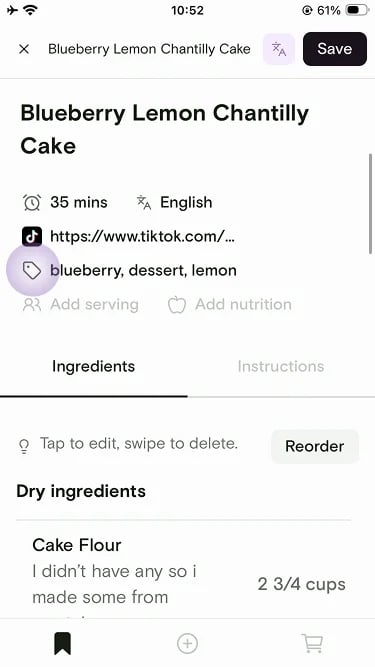
2
Add or remove tags
Type a new tag in Add a tag, or tap the x on a selected tag to remove it. Tap Done when you’re finished. Changes apply immediately in your library filters.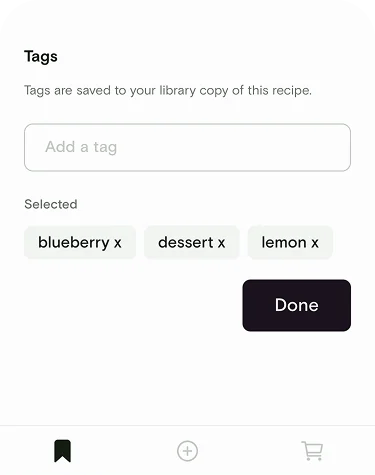
Managing tags in your library
Rename tags, move them into the right category for library filters, or add new ones from Account settings.1
Open Account settings
On the Saved tab, tap your profile icon in the top right.
2
Tap Manage tags
Under Kitchen, tap Manage tags.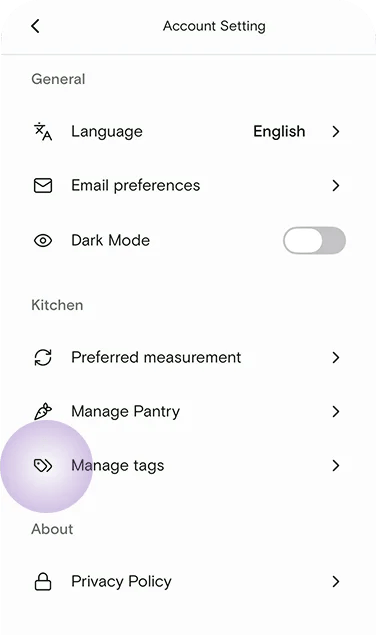
3
Review your tags
Tags are grouped by category, such as Cuisine and Meal type. Tap + Add tag to create a new one, or tap an existing tag to edit it.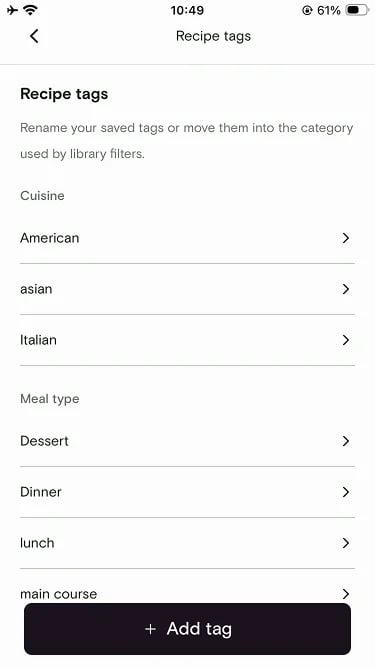
4
Rename, recategorize, or delete
Change the tag name, pick a different category for library filters, or delete the tag. Then tap Save.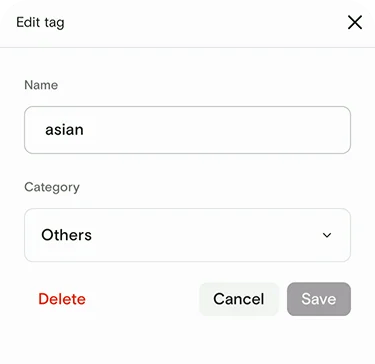
Filtering your library by tag
Tags become powerful the moment you have more than a handful of recipes. In your library:1
Tap the filter icon
Open the filters drawer above your recipe list.
2
Pick one or more tags
Filter by any combination of cuisine, meal type, diet, main ingredient, cooking method, or more.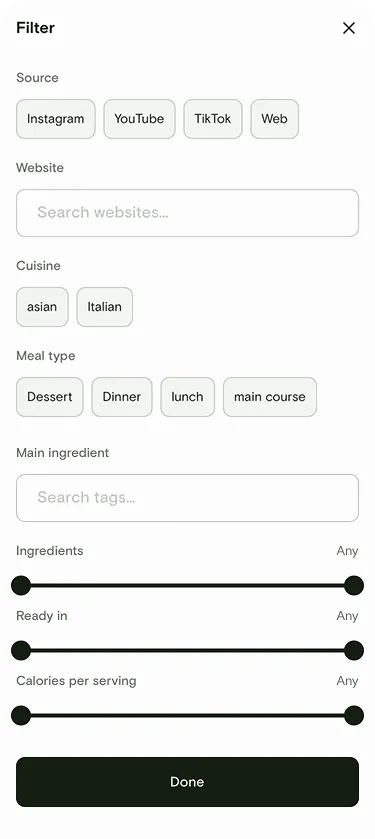
3
See only matching recipes
Your library instantly narrows to recipes that match all selected tags.