- iPhone (iOS)
- Android
1
Open any browser app and tap the Share button
Open Safari (or any browser) and navigate to any webpage. Tap the Share button — it looks like a box with an arrow pointing upward, and you’ll usually find it at the bottom of the screen.
2
Scroll right and tap More
In the row of app icons that appears in the share sheet, swipe right until you see the More button (it looks like three dots). Tap it.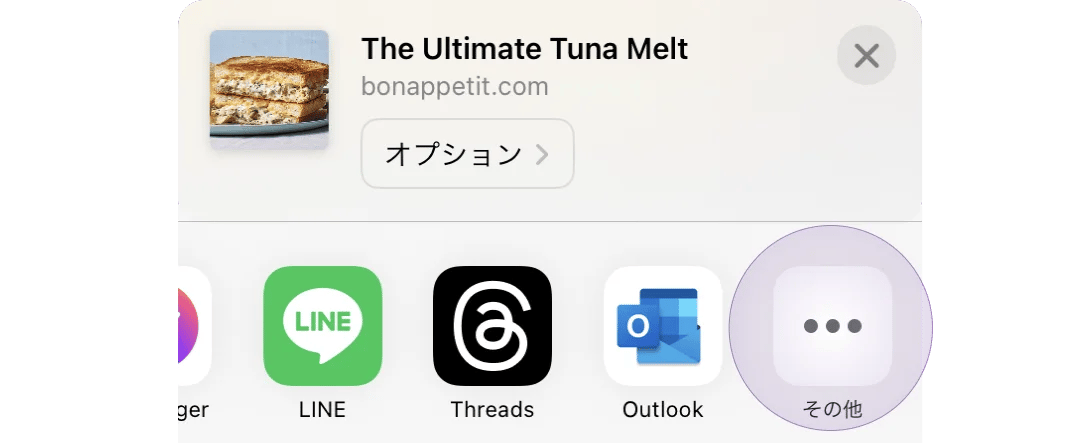
3
Tap Edit
In the top-right corner of the screen that appears, tap Edit. This lets you customise which apps appear in your share menu.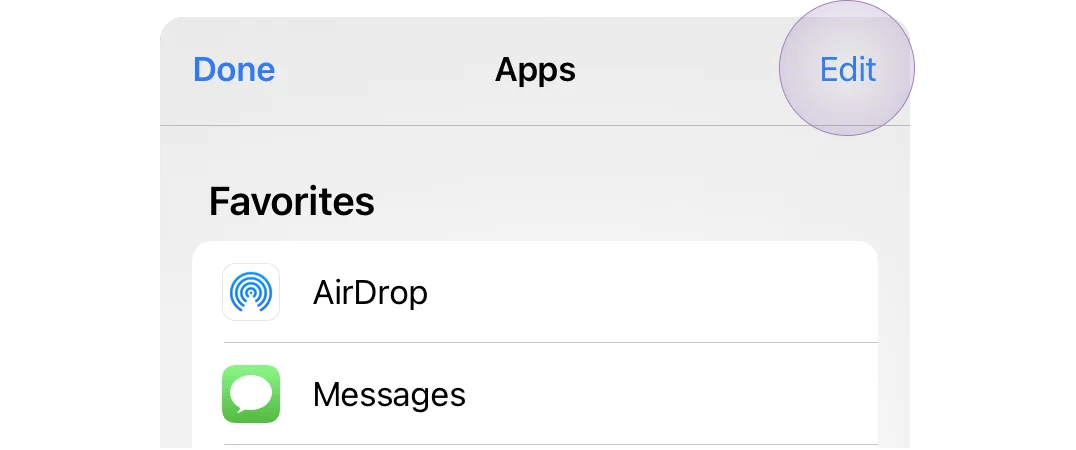
4
Find Souschef and tap the plus button
Scroll down through the list until you find Souschef. Tap the green + button to its left to add it to your favourites.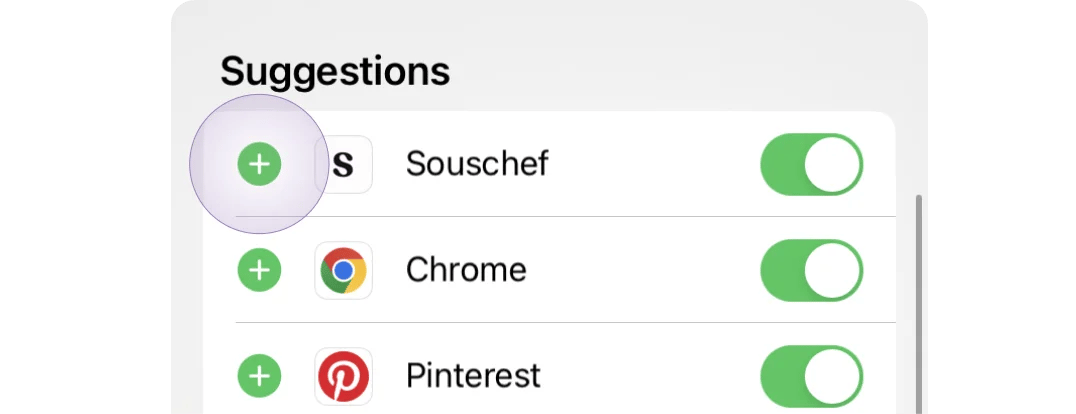
If Souschef doesn’t appear in the list, try restarting your phone. A restart typically refreshes your share options and will make Souschef show up.
5
Drag Souschef to the top of the list
Once it’s in your favourites, press and hold the three-line handle to the right of Souschef and drag it to the top of the list. Tap Done to save your changes.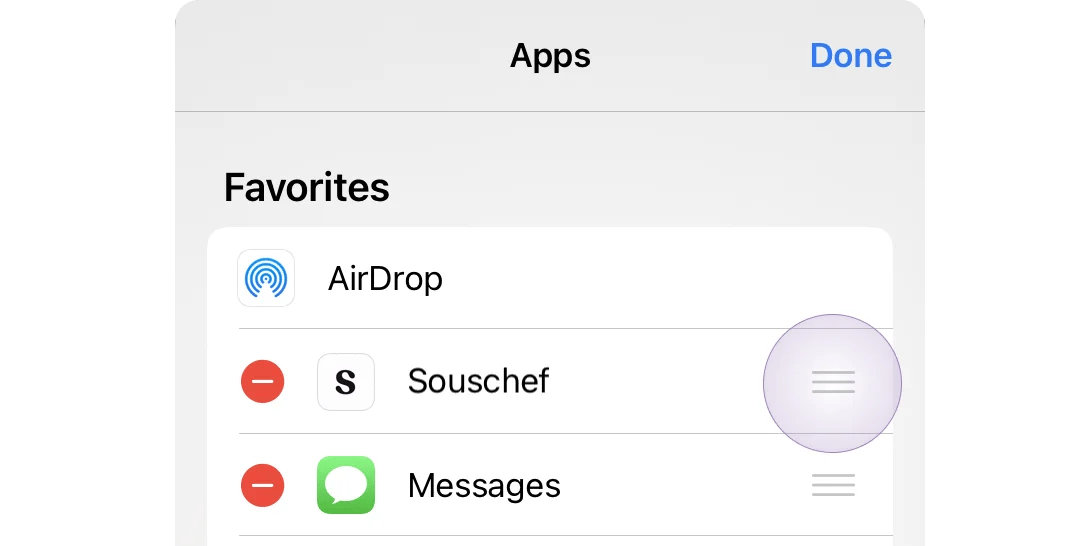

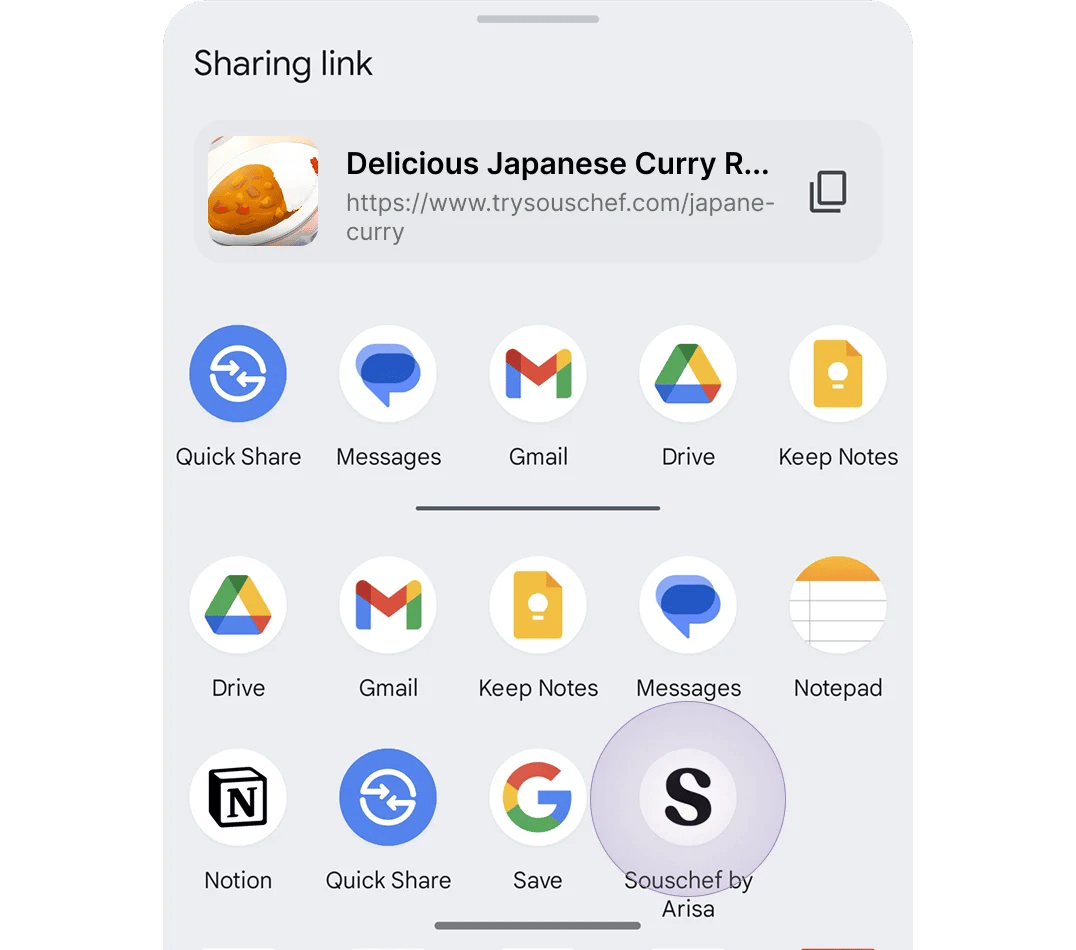

Once pinned, you’ll see Souschef’s icon whenever you tap Share in any app — including Instagram, TikTok, Facebook, YouTube, Pinterest, and recipe websites. Just tap it to send the recipe straight to your collection.