You're not signed in to the correct account
You're not signed in to the correct account
Your recipes are tied to the account you used when you saved them. If you’re signed in with a different email address, your collection will look empty.To fix this:
- Go to the Account or Settings section in Souschef.
- Sign out of your current account.
- Sign back in using the email address you originally used to save your recipes.
You're on a new device
You're on a new device
Switched to a new phone? Your recipes are stored with your account, not on the device itself — so you just need to sign in to get them back.Sign in to Souschef on your new device using your existing account credentials, and your recipe collection should sync automatically. For more help with this, see Sign in on another device.
The app needs to refresh
The app needs to refresh
Sometimes the app just needs a nudge to load the latest data.
- Close Souschef completely (force-quit the app).
- Reopen it.
- Once the recipe list is visible, pull down from the top to trigger a manual refresh.
The app was reinstalled
The app was reinstalled
If you deleted and reinstalled Souschef, your recipes aren’t gone — they’re still tied to your account in the cloud. Simply sign back in with the same account you used before, and your collection will be restored.
The recipes were saved locally and aren't syncing
The recipes were saved locally and aren't syncing
If you believe your recipes may have been saved in an offline or local-only mode, please contact our support team and we’ll help you figure out what happened and whether those recipes can be recovered.
Check your Imported Recipes history
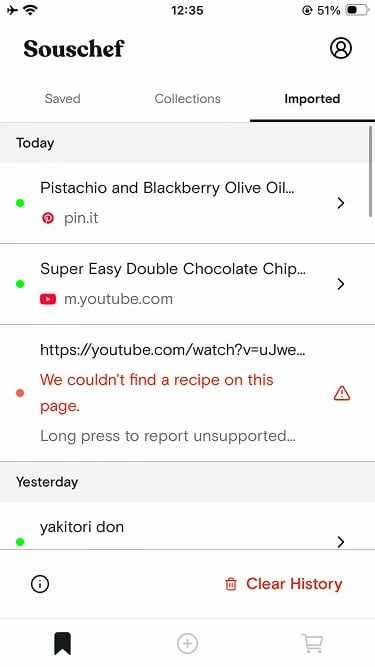
If a recipe seems missing because you’re not sure whether an import actually finished, check the Imported Recipes tab on your Bookmarks screen. It shows a device-local history of your recipe import attempts, grouped by day — so you can see exactly what you tried to save and when. From this history you can:- Open successful imports to jump straight to the saved recipe.
- Retry certain failures with one tap.
- Report unsupported sites to help us improve Souschef’s coverage.