
Create a shopping list from a recipe
1
Import a recipe
Make sure the recipe you want to shop for is already saved in Souschef. If you haven’t imported it yet, check out Import your first recipe to get started.
2
Tap Add to Shopping List
Open the recipe and tap the Add to List button.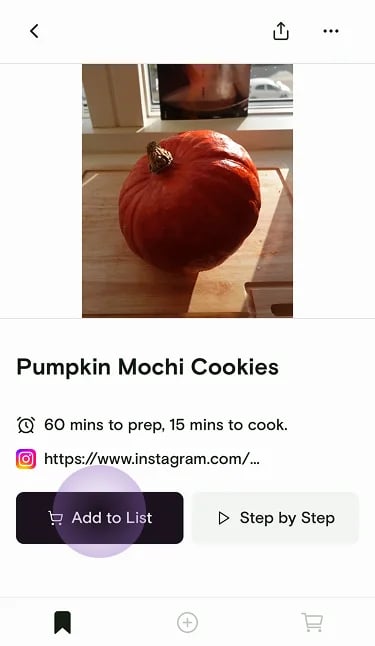
3
Adjust the serving size
Choose how many servings you’re making — the ingredient quantities will update automatically to match.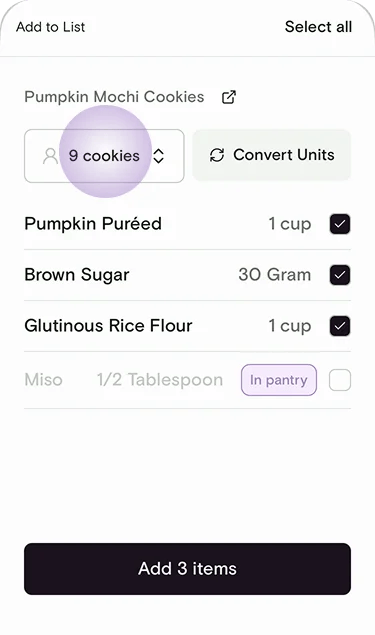
4
Review the 'In Pantry' badges
If you use Pantry, Souschef checks the recipe against ingredients you’ve added there. Matching items are marked with an In Pantry badge and are not added to the shopping list. You can still add them manually if you’re running low.You can also uncheck any other ingredient you already have on hand — anything unchecked is skipped from the list.
5
Tap Add items
Hit the Add items button and your shopping list is ready — automatically sorted by store aisle so you can shop efficiently.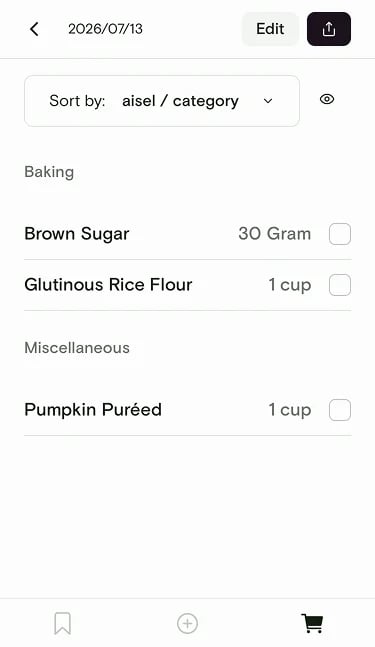
Add multiple recipes at once
Planning meals for the whole week? You can keep adding recipes to the same list, or send a day or week from Meal Plan. Souschef merges ingredients together — so if two recipes both need garlic, it combines them into a single line item.1
Tap Edit
Open your shopping list and tap Edit.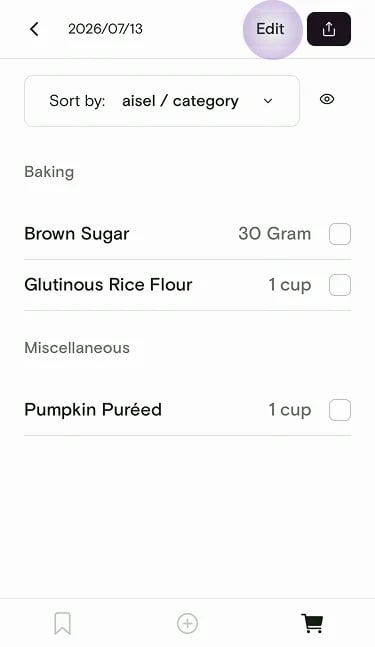
2
Tap Add Recipe Ingredients
Tap Add Recipe Ingredients.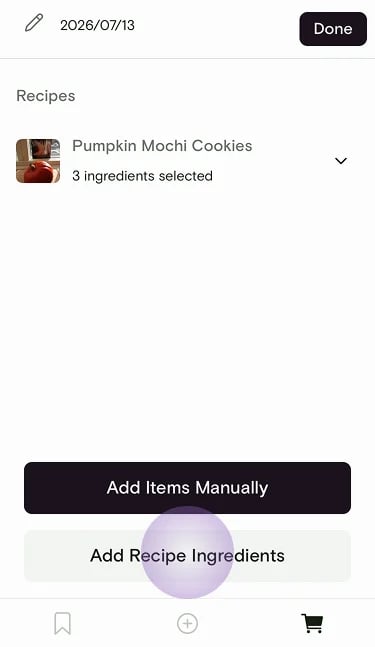
3
Choose a recipe
Pick a recipe from your library, then select the ingredients you need — same as when you add from a recipe detail page.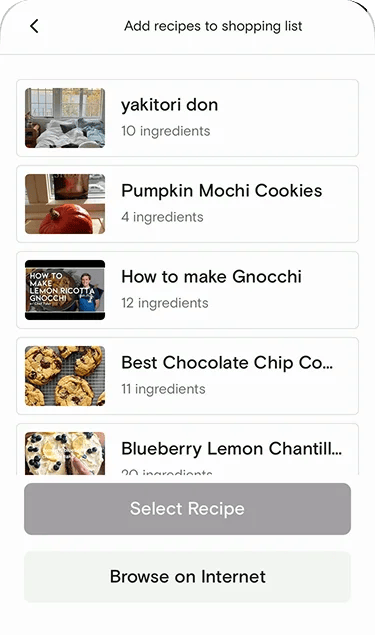
Add non-recipe items
Your shopping trip isn’t just about dinner — you might need paper towels, dish soap, or a snack for the kids too. Add those manually so everything stays in one place.1
Tap Edit
Open your shopping list and tap Edit.
2
Tap Add Items Manually
Tap Add Items Manually.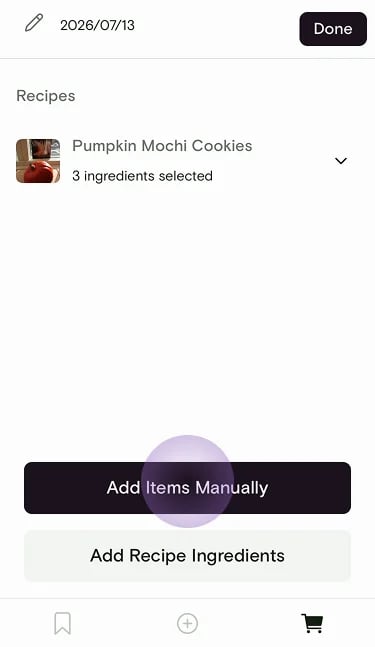
3
Type your item
Enter the item name under Misc, then tap Done.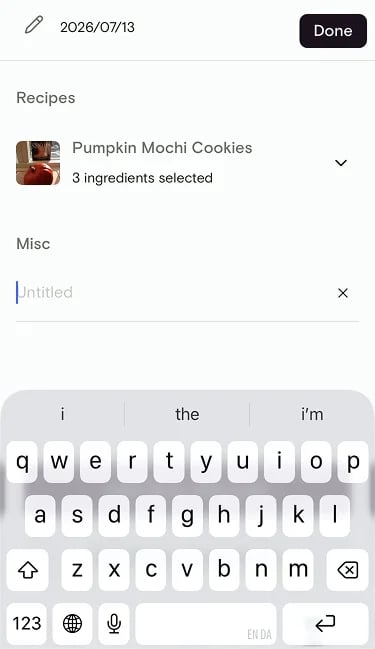
Share your list
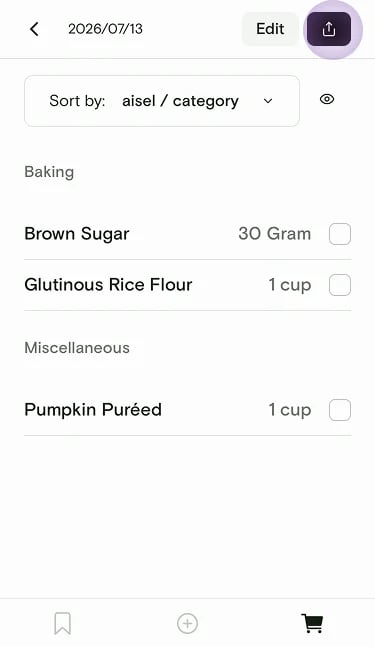
Sending someone else to the store? Or shopping with a partner? After you create a shopping list, Souschef offers Invite Friends on the spot.- Live list — share a private link so you can check items off together in the app or on the web. Anyone with the link can open it. People who open it in the app join your library. See Share a shopping list.
- Share as text — sends a one-time copy. That is not live. Use this for people who don’t use Souschef.
Still need help?
If you have questions or run into anything unexpected, our team is happy to help. Contact supportRelated articles