> ## Documentation Index
> Fetch the complete documentation index at: https://docs.trysouschef.com/llms.txt
> Use this file to discover all available pages before exploring further.
# Use Cooking Mode in Souschef for step-by-step cooking
> Cooking Mode guides you through a recipe step by step, keeps your screen awake, and manages timers so you can cook with fewer screen taps.
Included in Free plan
Good news — Cooking Mode is available to everyone using Souschef.
Cooking Mode is the heart of Souschef — it turns any recipe into a step-by-step cooking guide on your phone. It isn't fully hands-free yet, but it cuts down how often you need to touch the screen. It tackles common mobile cooking frustrations: a screen that dims at the worst moment, juggling a separate timer app, losing track of ingredient quantities mid-step. Cooking Mode handles all of that so you can focus on the food.
## What Cooking Mode does
Move through your recipe one step at a time so you always know exactly where you are and what comes next.
Your phone stays lit the entire time you're in Cooking Mode — so you tap less just to keep the screen on.
Time mentions in recipe steps are automatically detected and turned into one-tap countdown timers.
Tap any ingredient name in a step to instantly see its quantity — no scrolling back to the top of the recipe.
All prep tasks (like chopping, mincing, or preheating) are listed upfront as a checklist before cooking begins.
Open a second recipe in a new window while keeping your first recipe — and all its timers — running in the background.
Change the number of servings right inside Cooking Mode and all ingredient quantities recalculate automatically.
## How to start Cooking Mode
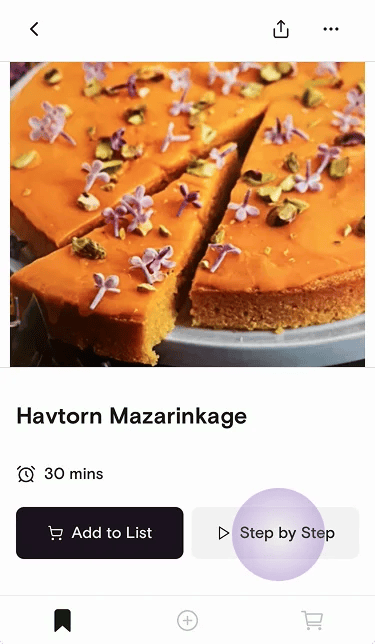
Tap any recipe in your Souschef library to open it.
Tap **Step by Step** to launch Cooking Mode.
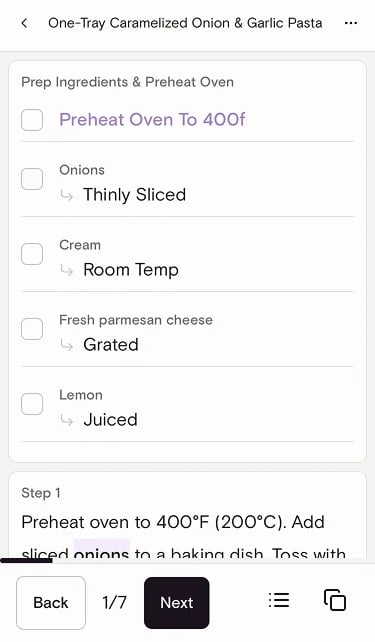
 Before the first cooking step, you'll see a checklist of all the prep tasks for this recipe — including things like preheating the oven. Work through the list and check each item off as you go.
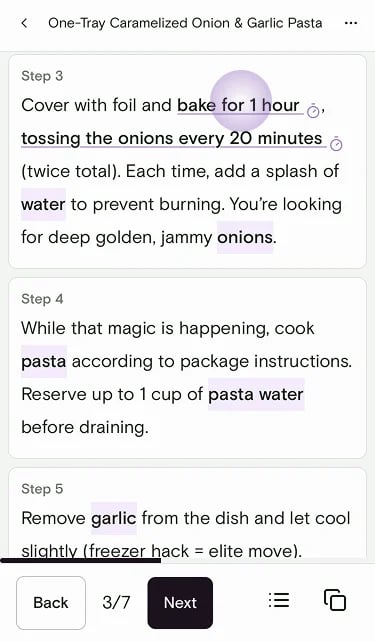
 Tap **Next** to move through each cooking step at your own pace. Souschef guides you from start to finish. Tap a highlighted time mention to start a [timer](/using/timers) without leaving the recipe.
 ## During cooking
Once you're in Cooking Mode, here are a few handy things you can do:
### Adjust servings
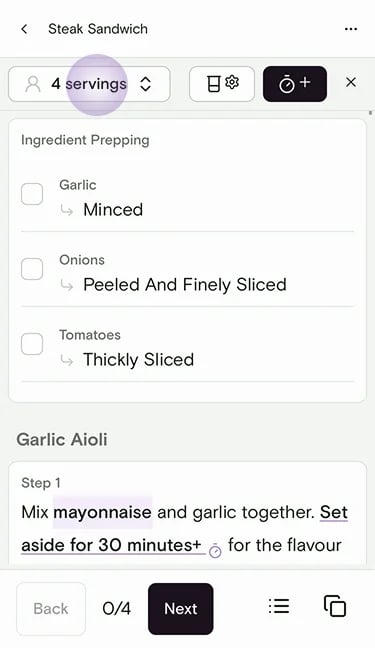
Tap the servings control at the top to scale the recipe while you cook. Ingredient quantities update automatically.
## During cooking
Once you're in Cooking Mode, here are a few handy things you can do:
### Adjust servings
Tap the servings control at the top to scale the recipe while you cook. Ingredient quantities update automatically.
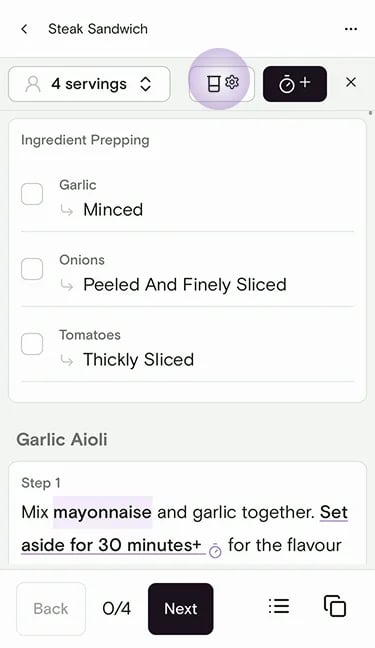
 ### Convert measurements
Tap the convert units button (beaker icon) to switch between measurement systems without leaving Cooking Mode.
### Convert measurements
Tap the convert units button (beaker icon) to switch between measurement systems without leaving Cooking Mode.
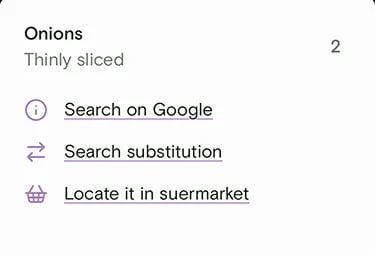
 ### Check an ingredient quantity
Tap any highlighted ingredient name in a step to see how much you need. From there you can also search for more info, find a substitution, or locate it in a supermarket.
### Check an ingredient quantity
Tap any highlighted ingredient name in a step to see how much you need. From there you can also search for more info, find a substitution, or locate it in a supermarket.
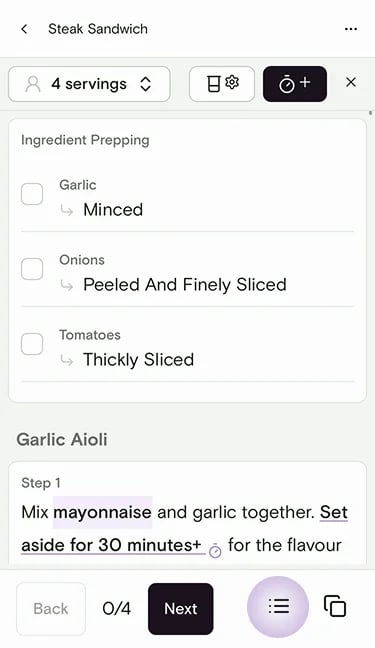
 ### View the full ingredients list
Tap the list icon to open the full ingredients checklist with quantities.
### View the full ingredients list
Tap the list icon to open the full ingredients checklist with quantities.
 ### Start a timer
When a step mentions a time (like "simmer for 10 minutes"), tap it to kick off a countdown right in the app. You can also add a timer manually with the timer button. See [How recipe timers work](/using/timers) for details.
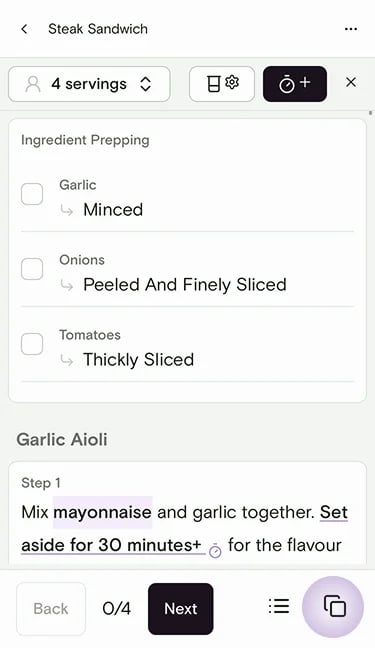
### Open a second recipe
Tap the multi-window button to open another recipe alongside your current one. Your timers keep running in the background the whole time.
### Start a timer
When a step mentions a time (like "simmer for 10 minutes"), tap it to kick off a countdown right in the app. You can also add a timer manually with the timer button. See [How recipe timers work](/using/timers) for details.
### Open a second recipe
Tap the multi-window button to open another recipe alongside your current one. Your timers keep running in the background the whole time.
 From there, tap **+ Add Recipe Tab** to open another recipe, or **Finish Cooking** when you're done.
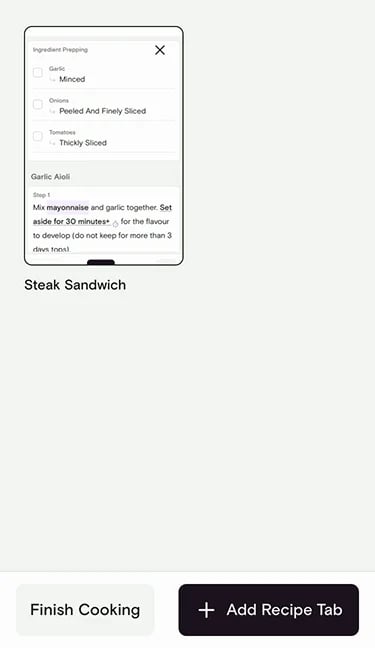 Your phone screen stays awake the entire time you're in Cooking Mode, so you don't have to keep waking it up mid-recipe.
***
## Still need help?
If you have questions or run into anything unexpected, our team is happy to help. [Contact support](/troubleshooting/contact-support)
***
**Related articles**
* [How recipe timers work](/using/timers)
* [Use the preparation checklist](/using/prep-checklist)
* [Adjust recipe servings](/using/adjust-servings)
* [Convert measurements](/using/convert-measurements)
* [Print a recipe](/using/print-recipes)
* [Shopping List](/using/shopping-list)
Your phone screen stays awake the entire time you're in Cooking Mode, so you don't have to keep waking it up mid-recipe.
***
## Still need help?
If you have questions or run into anything unexpected, our team is happy to help. [Contact support](/troubleshooting/contact-support)
***
**Related articles**
* [How recipe timers work](/using/timers)
* [Use the preparation checklist](/using/prep-checklist)
* [Adjust recipe servings](/using/adjust-servings)
* [Convert measurements](/using/convert-measurements)
* [Print a recipe](/using/print-recipes)
* [Shopping List](/using/shopping-list)