> ## Documentation Index
> Fetch the complete documentation index at: https://docs.trysouschef.com/llms.txt
> Use this file to discover all available pages before exploring further.
# How to import a YouTube cooking video into Souschef
> Souschef's YouTube recipe extractor uses AI to turn any cooking video or Short into a structured recipe with ingredients and timestamped steps.
Included in Free plan
Importing from YouTube is included in the free version of Souschef.
Ever wished you could cook along with a YouTube recipe without constantly pausing, rewinding, and squinting at the screen? Souschef uses AI to turn any YouTube cooking video — including YouTube Shorts — into a fully structured recipe complete with an ingredient list, step-by-step instructions with timestamps, and smart timers. Share a video to Souschef, or browse YouTube inside the app — then let it do the heavy lifting.
Souschef extracts recipe information from the video's description and, when available, the spoken audio. If the recipe isn't described in either source, the imported recipe may be incomplete.
## What you get from a YouTube import
When you import a YouTube cooking video, Souschef extracts recipe information from the video's title, description, and spoken audio when available:
* **Ingredient list** — scalable to any serving size, with easy measurement conversions
* **Step-by-step instructions with video timestamps** — jump straight to any moment in the video without scrubbing around
* **Smart timers** — Souschef automatically detects timing steps so you can set a timer with a single tap
* **Shopping list ready in one tap** — add all ingredients to your shopping list, automatically organized by aisle
## How to import a recipe from YouTube
There are three ways to import a YouTube cooking video. Pick whichever works best for you.
Already watching a cooking video in the YouTube app? Share it straight to Souschef.
Browse YouTube and find the cooking video or Short you'd like to import into Souschef.
Tap **Share** below the video.
 Tap the **Souschef** icon in the share sheet. Souschef will open and start extracting the recipe automatically.
Don't see Souschef in the share sheet? Follow [Add Souschef to your share menu](/getting-started/add-to-share-menu).
Souschef will extract the recipe from the video's description and spoken audio when available. This may take a moment depending on the length of the video — just keep the app open.
Check the ingredients and steps, make any edits you want, then save the recipe to your collection.
Prefer to stay in Souschef? Use the built-in YouTube Recipe Browser to find and import videos without leaving the app.
Open Souschef and tap the **+** button at the bottom of your collection.
On the import screen, tap **Browse**.
Tap the **Souschef** icon in the share sheet. Souschef will open and start extracting the recipe automatically.
Don't see Souschef in the share sheet? Follow [Add Souschef to your share menu](/getting-started/add-to-share-menu).
Souschef will extract the recipe from the video's description and spoken audio when available. This may take a moment depending on the length of the video — just keep the app open.
Check the ingredients and steps, make any edits you want, then save the recipe to your collection.
Prefer to stay in Souschef? Use the built-in YouTube Recipe Browser to find and import videos without leaving the app.
Open Souschef and tap the **+** button at the bottom of your collection.
On the import screen, tap **Browse**.
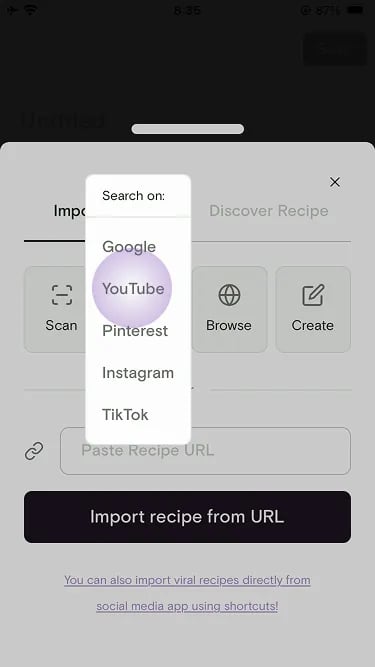
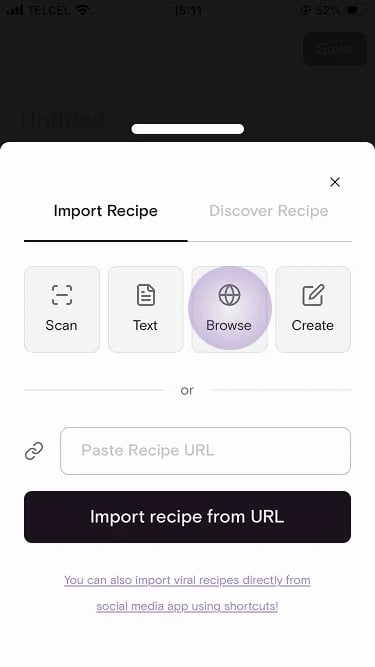 In the **Search on:** menu, tap **YouTube** to open the Recipe Browser.
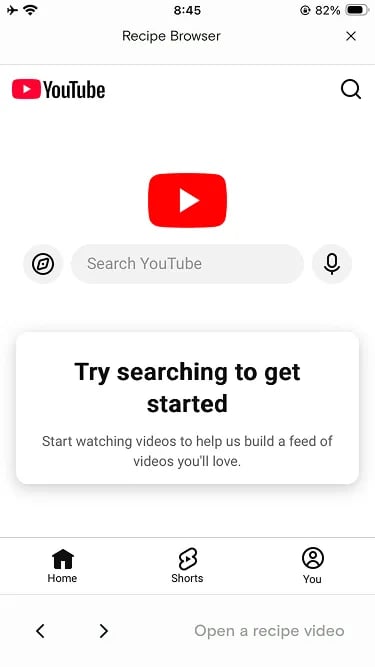
 Search or browse YouTube inside the Recipe Browser until you open the cooking video you want.
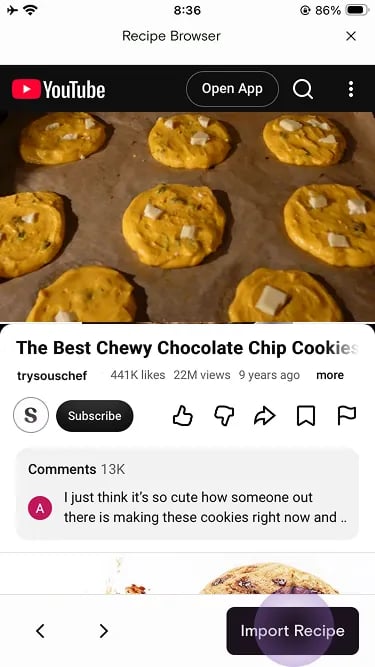
 When you're on a recipe video, the button at the bottom right becomes **Import Recipe**. Tap it to start the import.
 Souschef will extract the recipe from the video's description and spoken audio when available. Keep the app open until it's done.
Already have a YouTube link you want to save? You can paste the URL directly into Souschef.
In the YouTube app or in your browser, open the cooking video and copy its URL.
Open Souschef and tap the **+** button at the bottom of your collection.
Select **Import from URL** from the options.
Paste the YouTube URL and tap **Import**. Souschef will extract the recipe and add it to your collection.
Souschef plays the original YouTube video in the background whenever you're cooking from that recipe, so the creator gets credit for every view. It's a great way to support the people whose recipes you love!
## Troubleshooting
If the recipe extraction came out incomplete or something doesn't look right, head over to [Why a recipe import might fail](/importing/why-import-fails) for common causes and how to fix them.
***
## Still need help?
Our team is always happy to assist — [contact support](/troubleshooting/contact-support).
## Related articles
* [Import from Facebook](/importing/import-from-facebook)
* [Import from Instagram](/importing/import-from-instagram)
* [AI Discovery](/using/ai-discovery)
* [Why a recipe import might fail](/importing/why-import-fails)
* [Cooking mode](/using/cooking-mode)
* [Using smart timers](/using/timers)
* [All supported recipe sources](/importing/supported-sources)
Souschef will extract the recipe from the video's description and spoken audio when available. Keep the app open until it's done.
Already have a YouTube link you want to save? You can paste the URL directly into Souschef.
In the YouTube app or in your browser, open the cooking video and copy its URL.
Open Souschef and tap the **+** button at the bottom of your collection.
Select **Import from URL** from the options.
Paste the YouTube URL and tap **Import**. Souschef will extract the recipe and add it to your collection.
Souschef plays the original YouTube video in the background whenever you're cooking from that recipe, so the creator gets credit for every view. It's a great way to support the people whose recipes you love!
## Troubleshooting
If the recipe extraction came out incomplete or something doesn't look right, head over to [Why a recipe import might fail](/importing/why-import-fails) for common causes and how to fix them.
***
## Still need help?
Our team is always happy to assist — [contact support](/troubleshooting/contact-support).
## Related articles
* [Import from Facebook](/importing/import-from-facebook)
* [Import from Instagram](/importing/import-from-instagram)
* [AI Discovery](/using/ai-discovery)
* [Why a recipe import might fail](/importing/why-import-fails)
* [Cooking mode](/using/cooking-mode)
* [Using smart timers](/using/timers)
* [All supported recipe sources](/importing/supported-sources)