> ## Documentation Index
> Fetch the complete documentation index at: https://docs.trysouschef.com/llms.txt
> Use this file to discover all available pages before exploring further.
# How to import a recipe from any website into Souschef
> Import recipes from any website into Souschef using your browser's share sheet or by pasting a URL. Works with most popular recipe blogs.
Included in Free plan
Importing from websites is included in the free version of Souschef.
Found a great recipe on a blog or recipe website? You don't need to manually type it all out — share the page to Souschef (or paste the URL) and it will automatically extract the ingredients, instructions, and other details for you. Souschef works with most popular recipe websites, so getting set up takes only a few seconds.
## How to import a recipe from a website
There are two ways to import a website recipe. Pick whichever works best for you.
Already on the recipe page in your mobile browser? Share it straight to Souschef.
Open Safari (or any browser), go to the recipe page, and tap the **Share** button — it looks like a box with an arrow pointing upward, and you'll usually find it at the bottom of the screen.
 Choose **Souschef** from the share sheet. Souschef will open and start importing the recipe automatically.
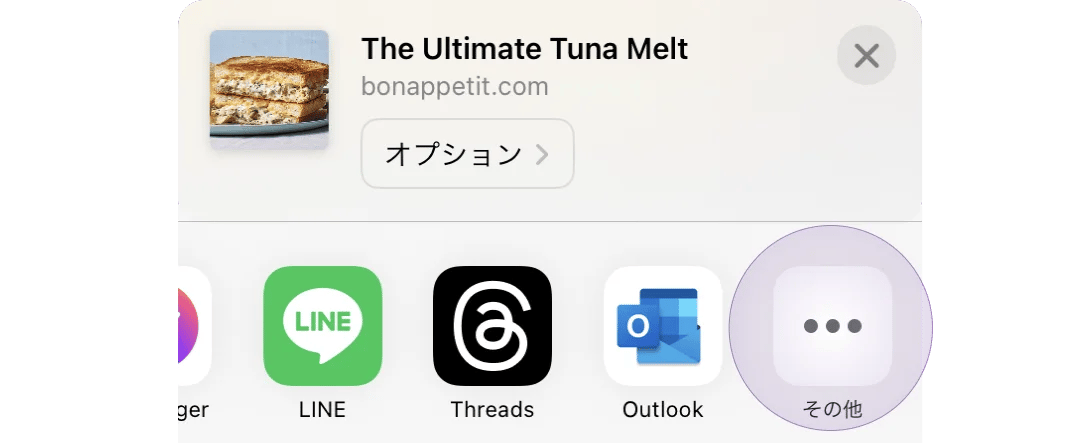 Don't see Souschef in the share sheet? Follow [Add Souschef to your share menu](/getting-started/add-to-share-menu).
Souschef will fetch the page and extract the recipe — this usually only takes a few seconds. Review the details, edit anything that needs tweaking, and tap **Save**.
Open Chrome (or any browser), go to the recipe page, and tap the **Share** button — you'll usually find it in the browser's menu or toolbar.
Don't see Souschef in the share sheet? Follow [Add Souschef to your share menu](/getting-started/add-to-share-menu).
Souschef will fetch the page and extract the recipe — this usually only takes a few seconds. Review the details, edit anything that needs tweaking, and tap **Save**.
Open Chrome (or any browser), go to the recipe page, and tap the **Share** button — you'll usually find it in the browser's menu or toolbar.
 Tap the **Souschef** icon in the share sheet. Souschef will open and start importing the recipe automatically.
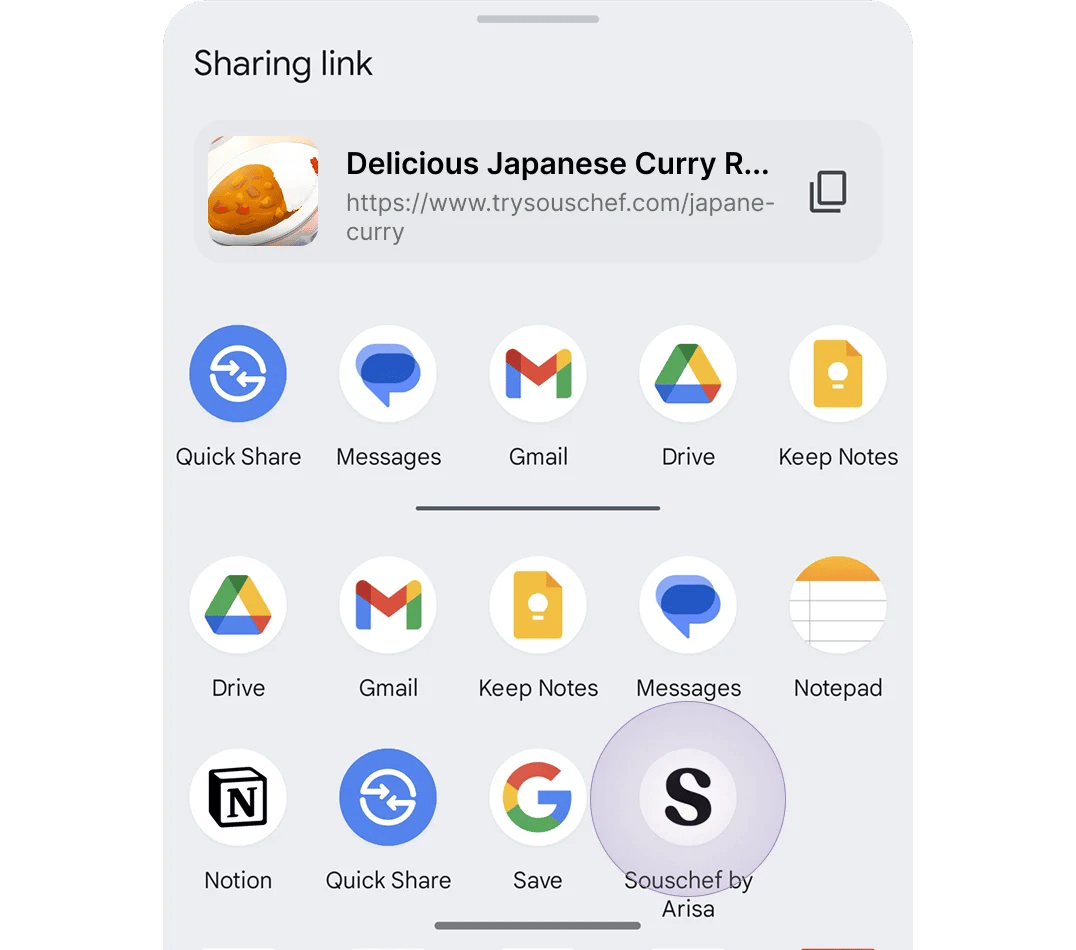 Don't see Souschef in the share sheet? Follow [Add Souschef to your share menu](/getting-started/add-to-share-menu).
Souschef will fetch the page and extract the recipe — this usually only takes a few seconds. Review the details, edit anything that needs tweaking, and tap **Save**.
Already have a recipe link you want to save? You can paste the URL directly into Souschef.
Find a recipe on any blog or recipe website and copy the page's URL from your browser's address bar.
Open Souschef and tap the **+** button at the bottom of your collection.
Select **Import from URL** from the options.
Paste the recipe URL and tap **Import**. Souschef will fetch the page and extract the recipe — this usually only takes a few seconds.
Review the details, edit anything that needs tweaking, and tap **Save**.
Most popular recipe blogs work great with Souschef. If a site uses a non-standard layout or custom format, the import might be incomplete — but you can edit any field before saving, so it's easy to fill in anything that's missing.
## Troubleshooting
If the import didn't work as expected, see [Why a recipe import might fail](/importing/why-import-fails) for common causes and how to fix them.
***
## Still need help?
Our team is always happy to assist — [contact support](/troubleshooting/contact-support).
## Related articles
* [Add Souschef to your share menu](/getting-started/add-to-share-menu)
* [Import from plain text](/importing/import-from-plain-text)
* [AI Discovery](/using/ai-discovery)
* [AI Tagging](/using/ai-tagging)
* [Why a recipe import might fail](/importing/why-import-fails)
* [All supported recipe sources](/importing/supported-sources)
Don't see Souschef in the share sheet? Follow [Add Souschef to your share menu](/getting-started/add-to-share-menu).
Souschef will fetch the page and extract the recipe — this usually only takes a few seconds. Review the details, edit anything that needs tweaking, and tap **Save**.
Already have a recipe link you want to save? You can paste the URL directly into Souschef.
Find a recipe on any blog or recipe website and copy the page's URL from your browser's address bar.
Open Souschef and tap the **+** button at the bottom of your collection.
Select **Import from URL** from the options.
Paste the recipe URL and tap **Import**. Souschef will fetch the page and extract the recipe — this usually only takes a few seconds.
Review the details, edit anything that needs tweaking, and tap **Save**.
Most popular recipe blogs work great with Souschef. If a site uses a non-standard layout or custom format, the import might be incomplete — but you can edit any field before saving, so it's easy to fill in anything that's missing.
## Troubleshooting
If the import didn't work as expected, see [Why a recipe import might fail](/importing/why-import-fails) for common causes and how to fix them.
***
## Still need help?
Our team is always happy to assist — [contact support](/troubleshooting/contact-support).
## Related articles
* [Add Souschef to your share menu](/getting-started/add-to-share-menu)
* [Import from plain text](/importing/import-from-plain-text)
* [AI Discovery](/using/ai-discovery)
* [AI Tagging](/using/ai-tagging)
* [Why a recipe import might fail](/importing/why-import-fails)
* [All supported recipe sources](/importing/supported-sources)