> ## Documentation Index
> Fetch the complete documentation index at: https://docs.trysouschef.com/llms.txt
> Use this file to discover all available pages before exploring further.
# Import Instagram recipe posts and reels into Souschef
> Save any Instagram recipe post or reel to Souschef via the share menu or by pasting a URL. Reads the caption and spoken audio when available.
Included in Free plan
Importing from Instagram is included in the free version of Souschef.
Souschef makes it easy to save Instagram recipe posts and reels so you'll never lose track of a great dish again. When you import a post, Souschef extracts recipe information from the caption and, when available, the video's spoken audio — then organizes everything neatly in your recipe collection. There are two ways to do it, so pick whichever works best for you!
Souschef works best when the recipe is included in the post caption or spoken aloud in the video. If a post only shows the finished dish without explaining the recipe, Souschef may not have enough information to create a complete recipe.
## How to import a recipe from Instagram
Already looking at a recipe in the Instagram app? Share it straight to Souschef.
Browse Instagram and find a recipe post or reel you want to save. Tap the **Send** button (the paper airplane icon).
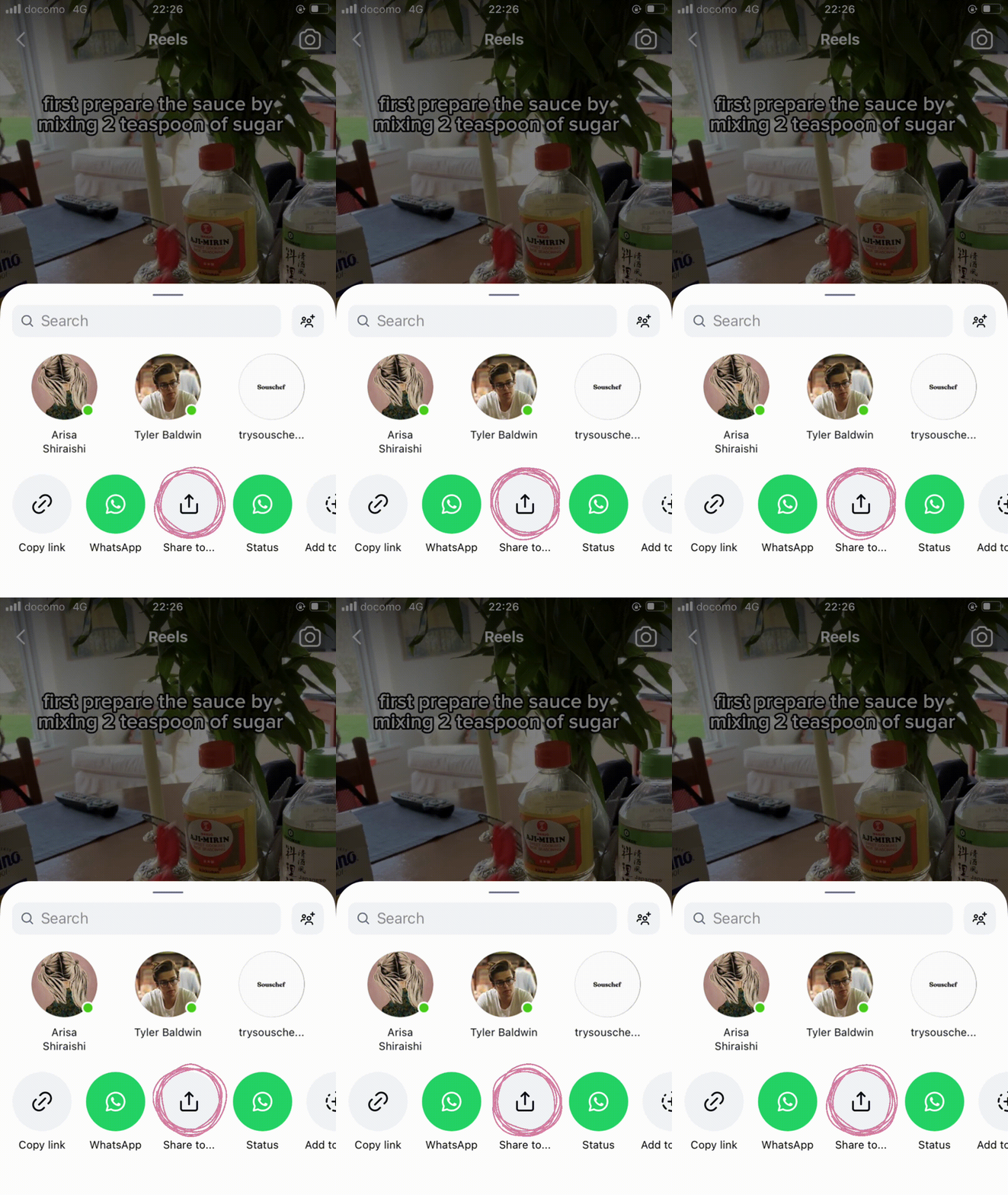
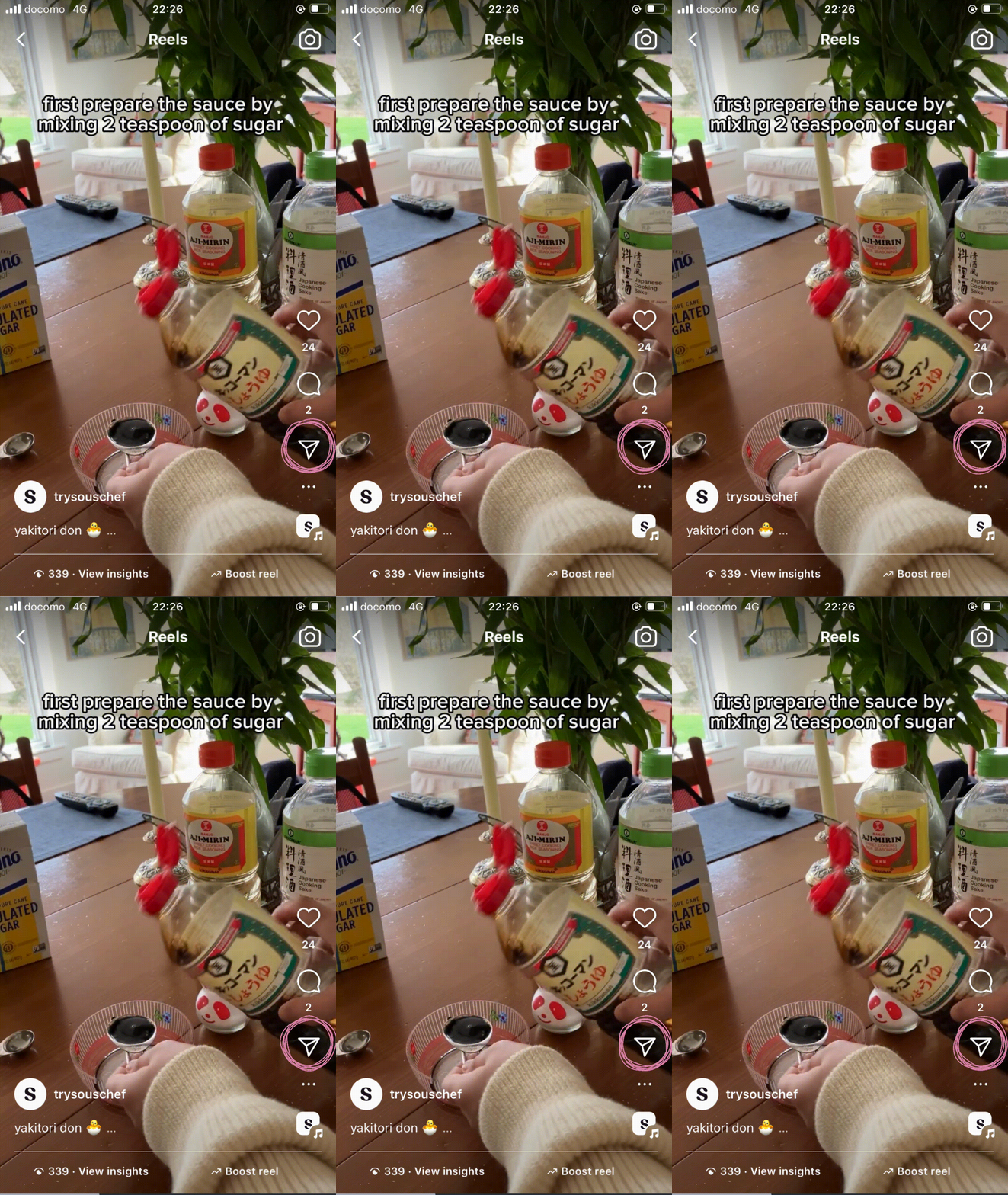 In the menu that appears, tap **Share to…** to open your phone's share sheet.
 Tap the **Souschef** icon in the share sheet. Souschef will open and start extracting the recipe automatically.
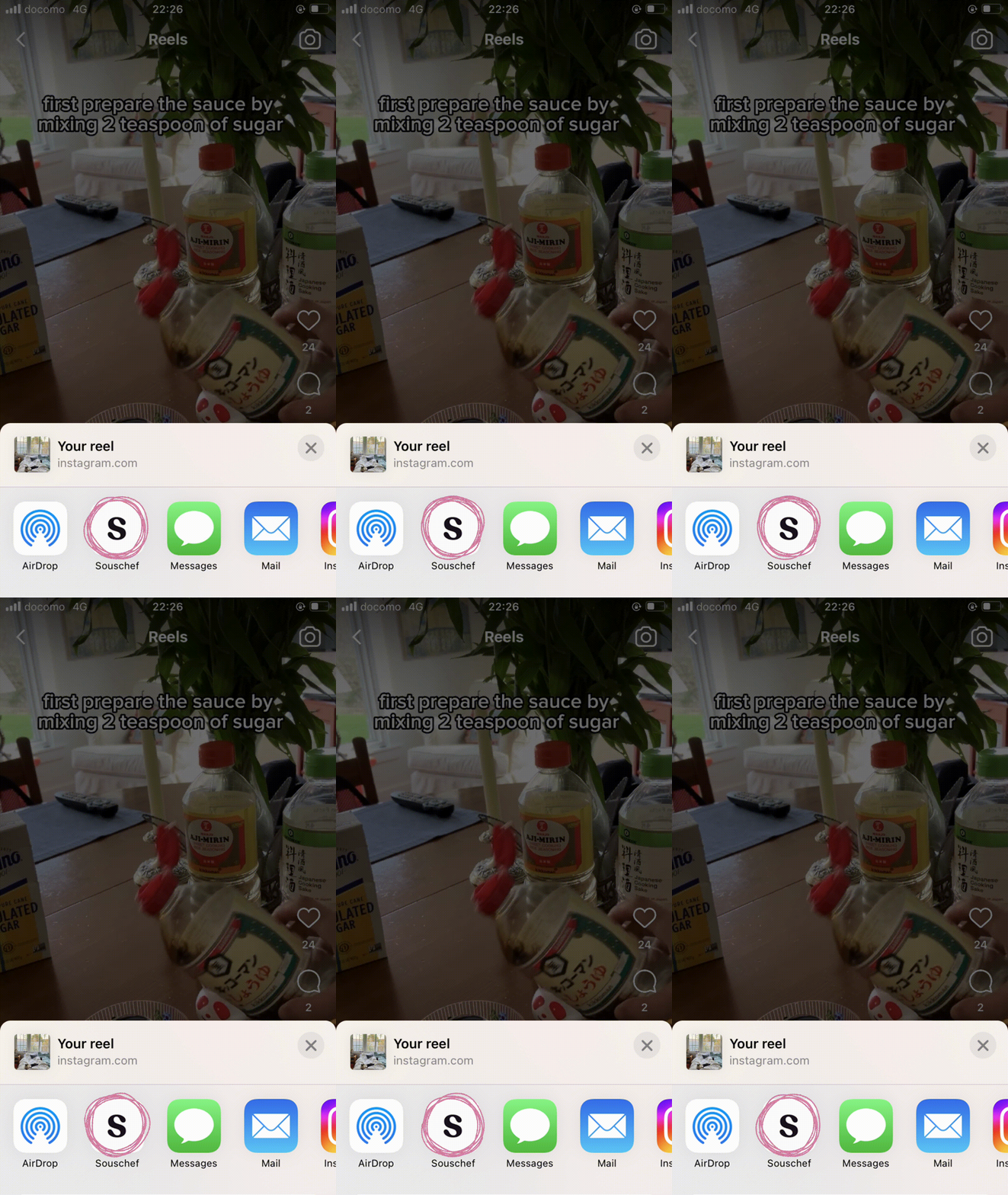 Don't see Souschef in the share sheet? Follow [Add Souschef to your share menu](/getting-started/add-to-share-menu).
Souschef will extract the recipe from the post's caption and spoken audio when available. This usually takes up to 30 seconds, and then your recipe will be ready to view, edit, and cook!
Already have an Instagram link you want to save? You can paste the URL directly into Souschef.
In the Instagram app or in your browser, open the recipe post or reel and copy its URL.
Open Souschef and tap the **+** button at the bottom of your collection.
Select **Import from URL** from the options.
Paste the Instagram URL and tap **Import**. Souschef will extract the recipe and add it to your collection.
The process can take up to 30 seconds. Keep the Souschef app open while it works — closing the app too early may interrupt the import.
## Troubleshooting
If Souschef couldn't find a recipe, or the extracted details look incomplete, don't worry — it doesn't always mean something went wrong. See [Why a recipe import might fail](/importing/why-import-fails) for common reasons and easy fixes.
***
## Still need help?
Our team is always happy to assist — [contact support](/troubleshooting/contact-support).
## Related articles
* [Add Souschef to your share menu](/getting-started/add-to-share-menu)
* [Import from Facebook](/importing/import-from-facebook)
* [Import from TikTok](/importing/import-from-tiktok)
* [AI Discovery](/using/ai-discovery)
* [AI Tagging](/using/ai-tagging)
* [Why a recipe import might fail](/importing/why-import-fails)
* [All supported recipe sources](/importing/supported-sources)
Don't see Souschef in the share sheet? Follow [Add Souschef to your share menu](/getting-started/add-to-share-menu).
Souschef will extract the recipe from the post's caption and spoken audio when available. This usually takes up to 30 seconds, and then your recipe will be ready to view, edit, and cook!
Already have an Instagram link you want to save? You can paste the URL directly into Souschef.
In the Instagram app or in your browser, open the recipe post or reel and copy its URL.
Open Souschef and tap the **+** button at the bottom of your collection.
Select **Import from URL** from the options.
Paste the Instagram URL and tap **Import**. Souschef will extract the recipe and add it to your collection.
The process can take up to 30 seconds. Keep the Souschef app open while it works — closing the app too early may interrupt the import.
## Troubleshooting
If Souschef couldn't find a recipe, or the extracted details look incomplete, don't worry — it doesn't always mean something went wrong. See [Why a recipe import might fail](/importing/why-import-fails) for common reasons and easy fixes.
***
## Still need help?
Our team is always happy to assist — [contact support](/troubleshooting/contact-support).
## Related articles
* [Add Souschef to your share menu](/getting-started/add-to-share-menu)
* [Import from Facebook](/importing/import-from-facebook)
* [Import from TikTok](/importing/import-from-tiktok)
* [AI Discovery](/using/ai-discovery)
* [AI Tagging](/using/ai-tagging)
* [Why a recipe import might fail](/importing/why-import-fails)
* [All supported recipe sources](/importing/supported-sources)