> ## Documentation Index
> Fetch the complete documentation index at: https://docs.trysouschef.com/llms.txt
> Use this file to discover all available pages before exploring further.
# How to import recipes from Facebook into Souschef
> Import recipe posts, videos, and reels from Facebook into Souschef using the share menu or by pasting a URL. Facebook recipes also appear in AI Discovery.
Included in Free plan
Importing from Facebook is included in the free version of Souschef.
Souschef can save any recipe you spot on Facebook — from a friend's shared post to a viral cooking video or reel. Share the post to Souschef (or paste its URL) and Souschef extracts recipe information from the post's caption or description and, when available, the video's spoken audio — then builds a full, structured recipe you can cook, scale, and add to your shopping list.
Souschef works best when the recipe is included in the post caption (or description) or spoken aloud in the video. If a post only shows the finished dish without explaining the recipe, Souschef may not have enough information to create a complete recipe.
## How to import a recipe from Facebook
There are two ways to import a Facebook recipe. Pick whichever works best for you.
Already looking at a recipe post in the Facebook app? Share it straight to Souschef.
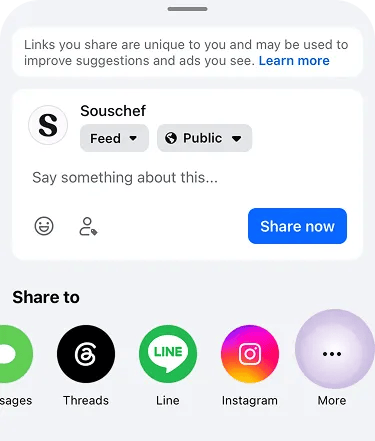
Open the post, video, or reel you want to save, then tap the **Share** button.
 In the share menu, tap **More** under **Share to** to open your phone's share sheet.
 Tap the **Souschef** icon in the share sheet. Souschef will open and start extracting the recipe automatically.
 Don't see Souschef in the share sheet? Follow [Add Souschef to your share menu](/getting-started/add-to-share-menu).
Souschef extracts from the caption (or description) and spoken audio when available — this usually takes up to 30 seconds. Review the extracted recipe, edit anything that needs tweaking, and tap **Save**.
Already have a Facebook link you want to save? You can paste the URL directly into Souschef.
Tap the three dots on the post and choose **Copy link**, or copy the URL from your browser's address bar.
Open Souschef and tap the **+** button at the bottom of your collection.
Select **Import from URL** from the options.
Paste the Facebook URL and tap **Import**. Souschef will extract the recipe and add it to your collection.
## Facebook recipes in AI Discovery
Facebook is one of the sources [AI Discovery](/using/ai-discovery) searches when you describe what you're in the mood for. If a Facebook post is a strong match for your query, it will appear right alongside results from Instagram, TikTok, YouTube, and recipe websites — and you can import it into your collection with a single tap.
For reels and video posts, keep Souschef open while it processes the recipe. Audio analysis takes a bit longer than a caption-only extraction, but the results are much richer.
## Troubleshooting
If a Facebook import came back empty or is missing details, see [Why a recipe import might fail](/importing/why-import-fails). You can also edit any recipe after saving — just tap **Edit** on the recipe.
***
## Still need help?
Our team is always happy to assist — [contact support](/troubleshooting/contact-support).
## Related articles
* [Add Souschef to your share menu](/getting-started/add-to-share-menu)
* [AI Discovery](/using/ai-discovery)
* [Why a recipe import might fail](/importing/why-import-fails)
* [All supported recipe sources](/importing/supported-sources)
Don't see Souschef in the share sheet? Follow [Add Souschef to your share menu](/getting-started/add-to-share-menu).
Souschef extracts from the caption (or description) and spoken audio when available — this usually takes up to 30 seconds. Review the extracted recipe, edit anything that needs tweaking, and tap **Save**.
Already have a Facebook link you want to save? You can paste the URL directly into Souschef.
Tap the three dots on the post and choose **Copy link**, or copy the URL from your browser's address bar.
Open Souschef and tap the **+** button at the bottom of your collection.
Select **Import from URL** from the options.
Paste the Facebook URL and tap **Import**. Souschef will extract the recipe and add it to your collection.
## Facebook recipes in AI Discovery
Facebook is one of the sources [AI Discovery](/using/ai-discovery) searches when you describe what you're in the mood for. If a Facebook post is a strong match for your query, it will appear right alongside results from Instagram, TikTok, YouTube, and recipe websites — and you can import it into your collection with a single tap.
For reels and video posts, keep Souschef open while it processes the recipe. Audio analysis takes a bit longer than a caption-only extraction, but the results are much richer.
## Troubleshooting
If a Facebook import came back empty or is missing details, see [Why a recipe import might fail](/importing/why-import-fails). You can also edit any recipe after saving — just tap **Edit** on the recipe.
***
## Still need help?
Our team is always happy to assist — [contact support](/troubleshooting/contact-support).
## Related articles
* [Add Souschef to your share menu](/getting-started/add-to-share-menu)
* [AI Discovery](/using/ai-discovery)
* [Why a recipe import might fail](/importing/why-import-fails)
* [All supported recipe sources](/importing/supported-sources)