> ## Documentation Index
> Fetch the complete documentation index at: https://docs.trysouschef.com/llms.txt
> Use this file to discover all available pages before exploring further.
# Import recipes from ChatGPT or Claude into Souschef
> Copy a recipe from ChatGPT, Claude, or another AI chat app, paste it into Souschef's Text import option, and save it as a structured recipe.
export const SUBSCRIPTION_ENABLED = false;
{SUBSCRIPTION_ENABLED ? (
Included in Free plan
) : (
Free
)}
Importing recipes from ChatGPT, Claude, and other AI chat apps is included in the free version of Souschef.
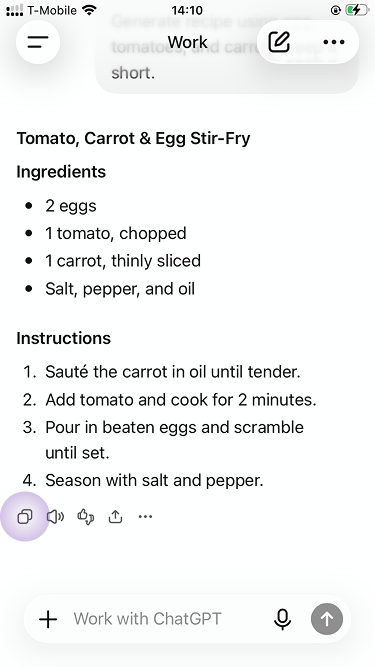
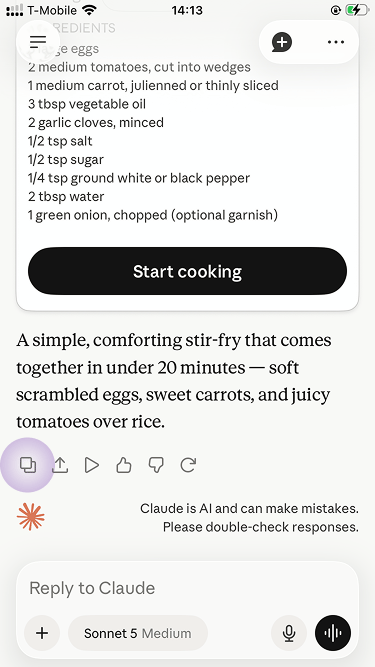
AI chat apps are great for turning what you already have into a recipe idea. Ask for a recipe, copy the answer, then paste it into Souschef using the **Text** import option. Souschef will structure the recipe into a title, ingredients, and instructions so you can save it, edit it, cook from it, and add ingredients to your shopping list.
AI-generated recipes can make mistakes. Before cooking, review ingredient amounts,
cook times, food safety details, and any allergy or dietary requirements.
## How to import from an AI chat app
Open your AI chat app and ask for the kind of recipe you want. For best results, ask it to include a **title**, **ingredients**, and **step-by-step instructions**.
Select and copy the full recipe response. Include the title, ingredients, instructions, servings, and times if the AI app provides them.
Open Souschef, go to your recipe library, and tap the **+** button to start a new import.
Select **Text** from the import options.
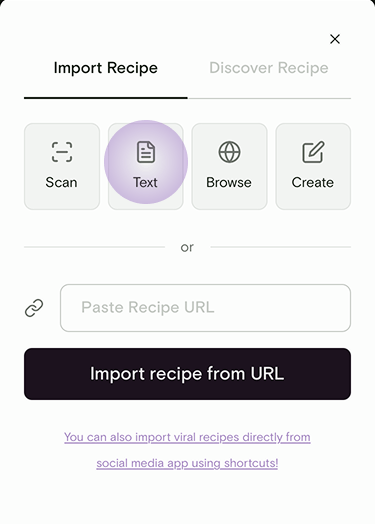 Paste the copied recipe text. Souschef's AI will extract the title, ingredients, quantities, and instructions. Review the preview, make any edits you want, then tap **Save**.
## Prompt ideas
Use these as starting points in ChatGPT, Claude, or another AI chat app.
I have tomatoes, eggs, and carrots that are expiring soon. Make a simple dinner using these ingredients and as few extra ingredients as possible. Include a title, ingredients, servings, and step-by-step instructions.
Make a weeknight recipe using rice, canned beans, frozen corn, and basic pantry spices. Keep it affordable and use minimal fresh ingredients.
I have chicken thighs, broccoli, onions, soy sauce, and rice. Create a balanced dinner using mostly these ingredients. Tell me what optional extras would improve it.
Create a vegetarian, high-protein lunch I can make in 20 minutes. Use common ingredients and include simple substitutions.
I have leftover roasted vegetables and cooked pasta. Turn them into a new recipe for two people with minimal additional ingredients.
Make a meal-prep recipe for four lunches that reheats well. Keep it under 500 calories per serving and include storage tips.
## Tips for better imports
* Ask for a clean recipe format with clear sections: title, ingredients, and instructions.
* Copy only the recipe you want to save. Leave out long conversation history or unrelated notes.
* If the recipe is vague, ask the AI app to add exact ingredient amounts before copying it into Souschef.
* Edit the recipe in Souschef before saving if you want to adjust servings, swap ingredients, or add notes.
***
## Still need help?
Our team is always happy to assist — [contact support](/troubleshooting/contact-support).
## Related articles
* [Import from plain text](/importing/import-from-plain-text)
* [Supported import sources](/importing/supported-sources)
* [Pantry](/using/pantry)
* [Using your shopping list](/using/shopping-list)
* [AI Tagging](/using/ai-tagging)
Paste the copied recipe text. Souschef's AI will extract the title, ingredients, quantities, and instructions. Review the preview, make any edits you want, then tap **Save**.
## Prompt ideas
Use these as starting points in ChatGPT, Claude, or another AI chat app.
I have tomatoes, eggs, and carrots that are expiring soon. Make a simple dinner using these ingredients and as few extra ingredients as possible. Include a title, ingredients, servings, and step-by-step instructions.
Make a weeknight recipe using rice, canned beans, frozen corn, and basic pantry spices. Keep it affordable and use minimal fresh ingredients.
I have chicken thighs, broccoli, onions, soy sauce, and rice. Create a balanced dinner using mostly these ingredients. Tell me what optional extras would improve it.
Create a vegetarian, high-protein lunch I can make in 20 minutes. Use common ingredients and include simple substitutions.
I have leftover roasted vegetables and cooked pasta. Turn them into a new recipe for two people with minimal additional ingredients.
Make a meal-prep recipe for four lunches that reheats well. Keep it under 500 calories per serving and include storage tips.
## Tips for better imports
* Ask for a clean recipe format with clear sections: title, ingredients, and instructions.
* Copy only the recipe you want to save. Leave out long conversation history or unrelated notes.
* If the recipe is vague, ask the AI app to add exact ingredient amounts before copying it into Souschef.
* Edit the recipe in Souschef before saving if you want to adjust servings, swap ingredients, or add notes.
***
## Still need help?
Our team is always happy to assist — [contact support](/troubleshooting/contact-support).
## Related articles
* [Import from plain text](/importing/import-from-plain-text)
* [Supported import sources](/importing/supported-sources)
* [Pantry](/using/pantry)
* [Using your shopping list](/using/shopping-list)
* [AI Tagging](/using/ai-tagging)